
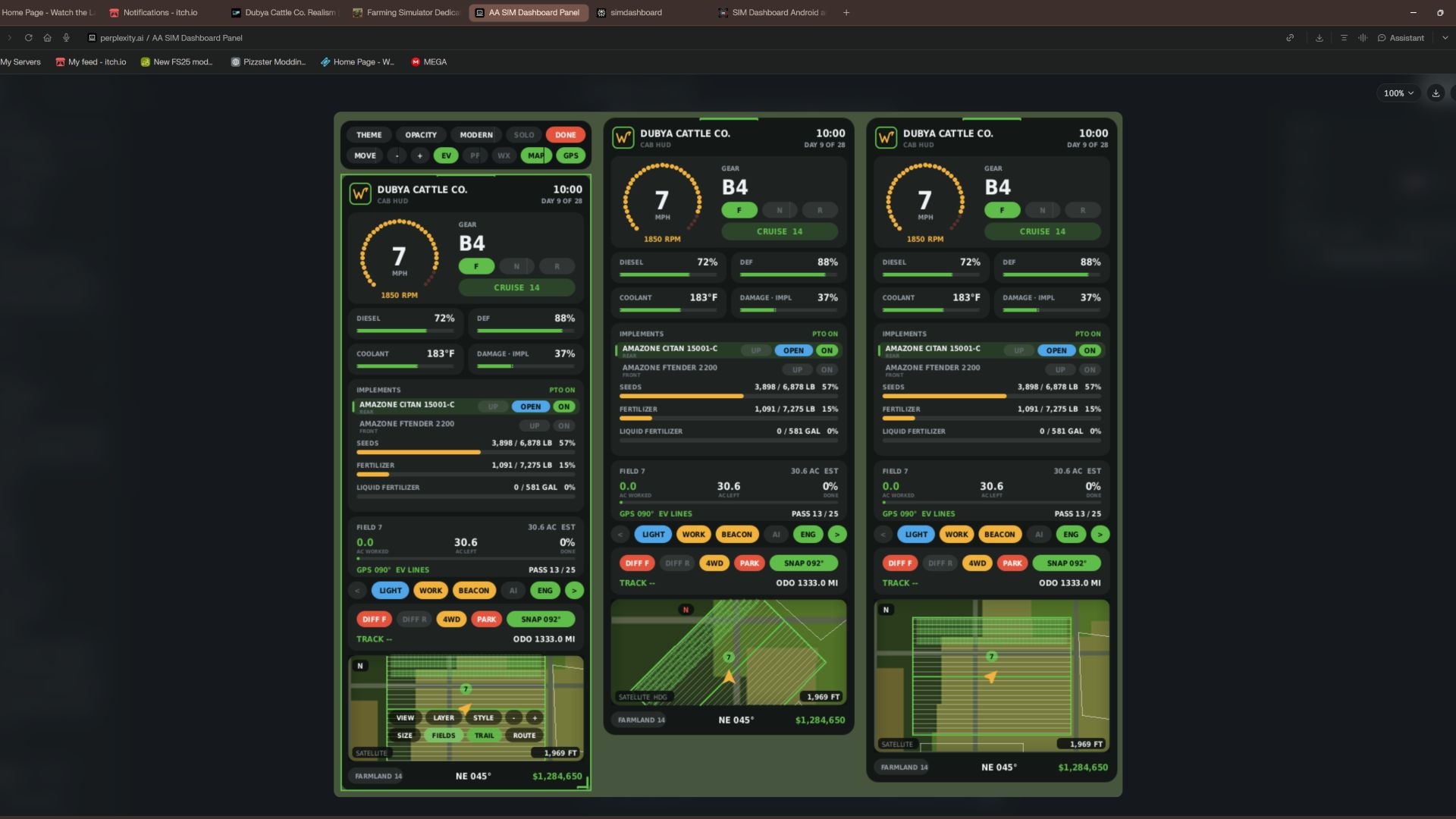

Dubya Cattle Co. Cab HUD for Farming Simulator 25
A full in-cab dashboard panel that puts everything you need while driving in one clean, movable, resizable window. Speed, engine, fuel, implements, Precision Farming data, a live mini map with field layers, and a 5-day weather forecast, all without opening a single menu.
The panel shows whenever you're in a vehicle and hides when you get out. It's client-side, so it works in single player and on multiplayer and dedicated servers, and each player sets it up their own way.
What the panel shows
Header
Dubya Cattle Co. logo
In-game day of the month and the time of day
Driving and engine
Speed (MPH) and engine RPM, with bar gauges
Direction (Forward / Neutral / Reverse), current gear, and cruise control speed
Diesel (or electric / methane), DEF level, coolant temperature in °F, and damage
Damage works like the game's repair bar: it shows the worst damage across the tractor and everything attached, labeled "DMG IMPL" when an implement is the worst one
Implements (like the game's control group HUD)
Every attached implement, including ones hooked to other implements, listed with front or rear position
The selected implement is highlighted
Each implement shows whether it's raised or lowered, folded or open (for implements that fold), and turned on
PTO on/off
Acres worked and left
Shows the field you're working, its size in acres, acres worked, acres left, and percent done, with a progress bar
In single player or when you host, it counts the exact area your implements process, so overlap isn't counted twice
On a dedicated server it estimates from working width and distance, marked EST
Each field and implement set gets its own counter, so a new job on the same field starts at zero
Fill tanks
Every tank across the tractor and implements, up to 4: for example seed and fertilizer on a seeder, or a front tank
Each tank shows its fill type, amount, capacity, and percentage with its own bar; empty tanks are named after what they hold
Bars turn amber at 20% and red at 10%
Lights and status
Indicators for turn signals, headlights, work lights, beacon, AI helper, and engine on/off
Enhanced Vehicle support (optional)
If you run the Enhanced Vehicle mod, an extra section shows:
Front and rear diff locks, 2WD / 4WD / FWD mode, and park brake
Steering snap angle, track number, work width, and headland distance
Odometer and trip meter
Precision Farming support (optional)
If Precision Farming is installed, the panel shows:
The soil type under your tractor
Sprayers and spreaders: pH or nitrogen, current and target value, application rate, and auto / manual mode (amber means you're still under target)
Seeders: seed rate, auto / manual mode, and tramline width
Combines: yield in t/ha and the percentage of yield potential
Mini map
Three views (Right Ctrl + Y): 2D north up, 2D heading up (the map turns with you and a red N shows where north is), and a live 3D chase view from above and behind the tractor
North-up map of your farm, using your map's own overview image, with an arrow showing your heading
4 zoom levels: 300 m, 600 m, 1.2 km, 2.4 km across
Field layers, using the same colors as the game's map menu, with a legend:
Field Work: plowed, cultivated, stubble tillage, seedbed
Crops: growing, ready to harvest, harvested, withered
Fertilized: fertilizer levels (replaced by PF Nitrogen when Precision Farming is installed)
Needs Work: needs lime, plowing, or rolling
Weeds: weeds and stones
Precision Farming: soil types, pH, nitrogen, yield, and seed rate
Layers refresh every 15 seconds, so fresh work shows up as you go
5 map styles: Standard, Satellite, Topo (with grid), Dark, and Night
Weather forecast
Today plus the next 4 days
Weather icon for each day (the worst weather expected during working hours)
High and low temperatures in your game's °F or °C setting
Rain, storm, hail, and snow days highlighted in amber
Footer
Farmland number, compass heading in degrees, and your farm's money
Customization
Modern layout (default): rounded cards, an arc-style RPM gauge around the speed readout, slim pill gauges and pill-shaped buttons. The original Classic layout is one key press away.
Move the panel to preset screen positions, or drag it anywhere with the mouse
Resize it with hotkeys, or drag the bottom-right corner
10 color themes plus a custom theme you can set in the settings file
Adjustable background opacity
Turn each section on or off: Enhanced Vehicle, Precision Farming, map, forecast
Solo mode hides the game's own HUD and keeps only this panel, for a clean cinematic cab view. Enhanced Vehicle's guide lines and track numbers stay visible. The game HUD comes back when you get out of the vehicle.
All settings save automatically to modSettings/FS25_DubyaHUD.xml
Controls
Every key uses Right Ctrl, and all of them can be changed in Options → Controls under "Dubya HUD".
Keys Action
Right Ctrl + H Show / hide the panel
Right Ctrl + J Move to next screen position
Right Ctrl + K Smaller
Right Ctrl + L Bigger
Right Ctrl + C Next color theme
Right Ctrl + B Background opacity
Right Ctrl + O Solo mode (hide game HUD)
Right Ctrl + E Show / hide Enhanced Vehicle info
Right Ctrl + P Show / hide Precision Farming info
Right Ctrl + F Show / hide weather forecast
Right Ctrl + M Show / hide mini map
Right Ctrl + N Map zoom
Right Ctrl + G Map layer
Right Ctrl + V Map style
Right Ctrl + U Panel layout (modern / classic)
Right Ctrl + Y Map view (2D north up / 2D heading up / 3D)
Mouse: when the cursor is showing, drag the panel's header to move it and its bottom-right corner to resize it.
Installation
Put FS25_DubyaHUD.zip in your mods folder (Documents\My Games\FarmingSimulator2025\mods). Don't unzip it, and keep the file name exactly as is.
Enable the mod when you load or create your save.
For a dedicated server, upload the same zip to the server's mods folder and enable it there.
Get in any vehicle. The panel appears automatically.
Compatibility
Works on its own. Enhanced Vehicle and Precision Farming are optional; their sections only appear when those mods are active.
Other mods' HUDs, such as AutoDrive or Courseplay, aren't hidden by solo mode.
If something isn't working, check log.txt for lines starting with "DubyaHUD".
v2.2.0.0
Hinzugefügt
- Automatische Kartenebene: Wenn du dich auf einem Feld befindest, wechselt die Karte automatisch zu der für die jeweilige Arbeit passenden Ebene:
- Pflug, Grubber, Scheibenegge, Tiefenlockerer, Walze, Mulcher, Steinsammler oder Sämaschine: „Feldarbeit“
- Mineraldünger, Flüssigdünger, Gülle, Mist oder Gärreste: „PF Stickstoff“ (bzw. „Gedüngt“ ohne Precision Farming)
- Kalk: „PF pH-Wert“ (bzw. „Behandlungsbedarf“ ohne Precision Farming)
- Herbizid oder mechanische Unkrautbekämpfung: „Unkraut“
- Mähdrescher: „PF Ertrag“ (bzw. „Fruchtarten“ ohne Precision Farming); Mähwerk oder Ballenpresse: „Fruchtarten“
- Bei Spritzen und Streuern wird die Ebene basierend auf dem aktuellen Tankinhalt, dem zuletzt verwendeten Mittel oder dem Inhalt eines Fronttanks bestimmt.
- Eine manuell ausgewählte Kartenebene bleibt aktiv, bis sich die Arbeit ändert oder du ein anderes Feld befährst.
- Die Schaltfläche „AUTO“ in der Kartenansicht (im Interaktionsmodus) aktiviert oder deaktiviert die automatische Ebenenwahl.
Entfernt
- Bearbeitungsspuren (Aufzeichnung, Speicherung sowie die zugehörige Schaltfläche); ältere, gespeicherte Spurendaten werden ignoriert.
---
v2.1.0.0
Hinzugefügt
- Die GPS-Routenführung nutzt nun das spielinterne GPS-System („Lenkassistent“), sodass GPS-Spuren auch ohne die Mod „Enhanced Vehicle“ funktionieren.
- Beim Befahren eines Feldes schaltet das Fahrzeug automatisch auf den Lenkassistenten um; das Spiel erkennt das Feld, berechnet den Kurs und zeigt die entsprechenden Spuren in der Spielwelt an.
- Der ursprüngliche KI-Modus wird etwa 8 Sekunden nach Verlassen des Feldes wieder aktiv – ebenso, wenn du das Fahrzeug verlässt oder in ein anderes Fahrzeug wechselst.
- Die HUD-Karte zeigt die vom Spiel generierten Spuren an, wobei die aktuell aktive Spur hervorgehoben wird. Die Feldkarte zeigt LINE x / y an.
- GPS-Modi über die Schaltfläche in der GPS-Symbolleiste: AUTO, GAME, EV, OFF.
- Gespeicherte Feldarbeiten: Bearbeitete Flächen (in Acres) werden pro Spielstand (im Multiplayer pro Server) gespeichert – alle 30 Sekunden, beim Speichern des Spiels sowie beim Beenden.
- Bereits bearbeitete Felder werden zu Beginn einer neuen Saison automatisch zurückgesetzt.
- RESET-Schaltfläche auf der Feldkarte im Interaktionsmodus (zum Bestätigen zweimal klicken).
---
v2.0.0.0
Neu hinzugefügt
- Interaktionsmodus (Rechte Strg-Taste + X): Mauszeiger erscheint, die Kamera folgt nicht mehr der Maus, das HUD ist anklickbar.
- Steuerung von Beleuchtung, Arbeitsscheinwerfern, Rundumleuchten, Blinkern und Motor.
- Auswahl von Anbaugeräten: Anheben/Absenken, Ein-/Ausklappen sowie Ein-/Ausschalten über die entsprechenden Schaltflächen.
- Funktionen von „Enhanced Vehicle“: Differentialsperren, Allradantrieb, Feststellbremse, Spurführung (Snap) sowie Kilometerzähler (Gesamt/Tagesstrecke).
- Karten-Schaltflächen für Ansicht, Ebenen, Stil, Zoom, Größe, Feldumrisse und Routenanzeige; Zoomen der Karte per Mausrad.
- Symbolleiste für Design, Deckkraft, Layout, Solo-Modus, Verschieben, Größenanpassung sowie zum Ein-/Ausblenden von EV (Enhanced Vehicle), PF (Precision Farming), Wettervorhersage, Karte und GPS.
- Verschieben durch Ziehen an der Kopfzeile, Größenanpassung durch Ziehen an der Ecke.
- Beenden des Modus über: Rechte Strg-Taste + X, „DONE“-Schaltfläche oder durch Verlassen des Fahrzeugs.
- Automatische GPS-Route beim Befahren eines Feldes: Orientiert sich an der längsten geraden Feldkante; der erste Durchgang erfolgt im Abstand einer halben Arbeitsbreite von dieser Kante.
- Bei installiertem „Enhanced Vehicle“ werden dessen Spurlinien aktiviert; die HUD-Karte übernimmt Änderungen, die in „Enhanced Vehicle“ vorgenommen wurden.
- Die Feldkarte zeigt die Fahrtrichtung der Route sowie die Nummer des aktuellen Durchgangs an.
- Rechte Strg-Taste + R: Route neu berechnen.
- Karten-Erweiterungen
- Anzeige von Feldumrissen und Feldnummern; das aktuelle Feld wird hervorgehoben.
- Drei verschiedene Kartengrößen (Rechte Strg-Taste + T).
- Bei der „Fahrtrichtung oben“-Ansicht (Heading-up) wird der eigene Pfeil weiter unten platziert, um mehr Sicht auf den Bereich vor dem Fahrzeug zu ermöglichen.
- Feldumrisse werden nur für die aktuell sichtbaren Felder gezeichnet.
Geändert
- Alle bisherigen Tastenbelegungen bleiben erhalten.
---
v1.9.0.0
Geändert
- Durchgehende Verwendung von imperialen Einheiten, unabhängig von den allgemeinen Spieleinstellungen.
- Flüssigkeiten werden in Gallonen angegeben. Getreide in Bushel (gemäß USDA-Standardgewicht); alle anderen Angaben in Pfund (lbs)
- Geschwindigkeit und Reisegeschwindigkeit in mph; Kühlmitteltemperatur und Wettervorhersage in °F
- Arbeitsbreite, Vorgewende, Fahrgassen und Kartenmaßstab in Fuß (ft); Gesamtkilometerstand und Teilstrecke in Meilen (mi)
- Ausbringmengen für Precision Farming in lb/ac oder gal/ac; Saatstärke in lb/ac oder Körner/ac; Stickstoffmenge in lb/ac
- Ertrag bei der Ernte mit dem Mähdrescher in bu/ac für Getreide, in lb/ac für andere Kulturen