Search results for jujutsu infinite script

44 results
  • GE10 Script - Spline To Field Generator (Prefab)
    804
    KingMods Logo
    Published by KingMods
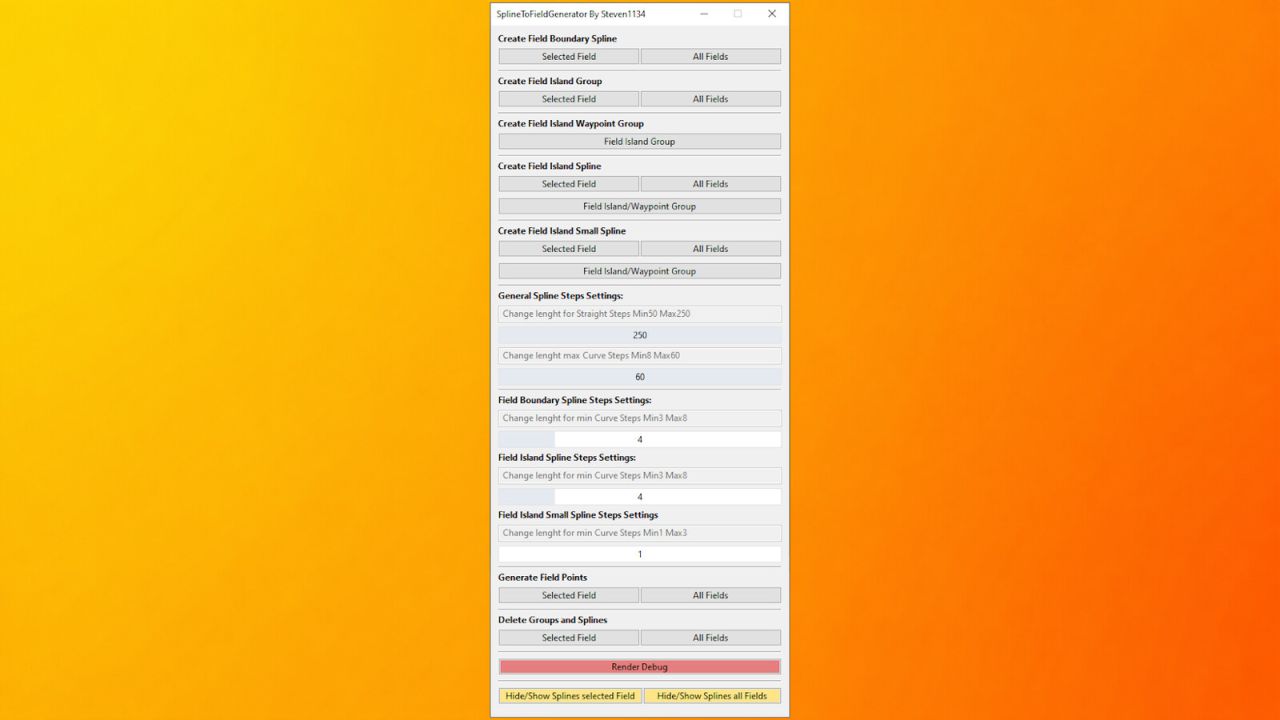
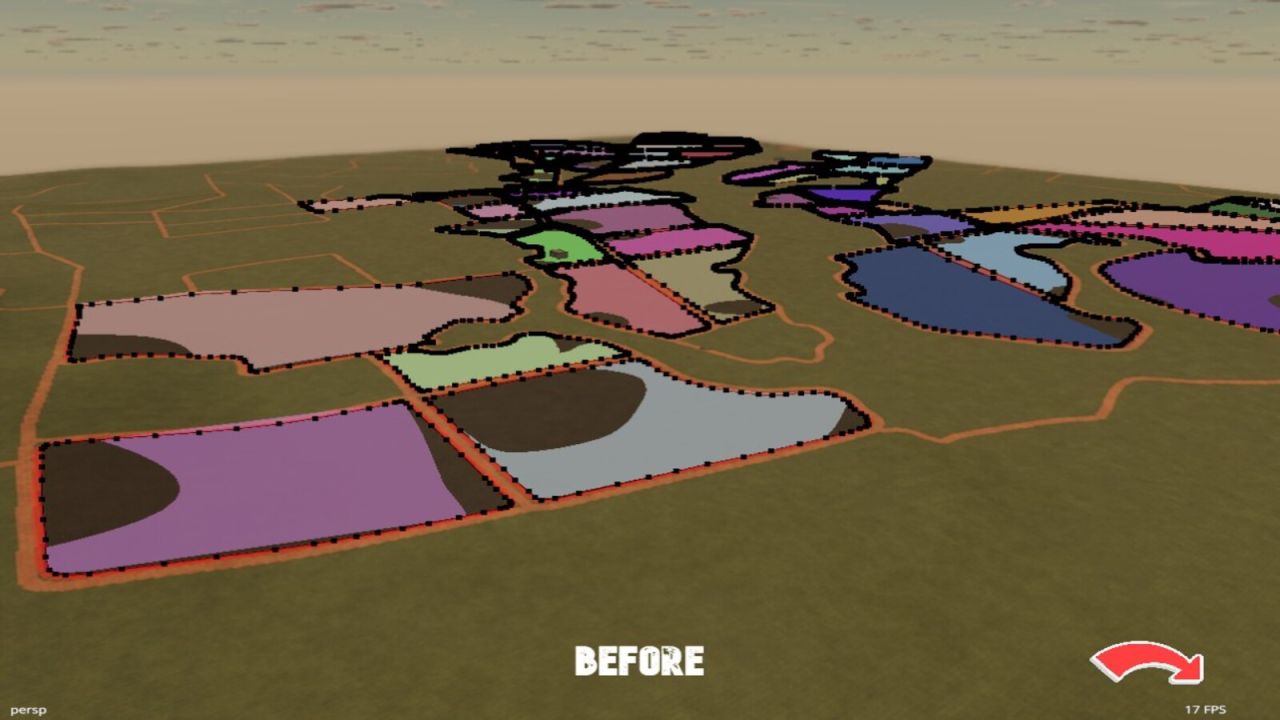
    The SplineToFieldGenerator is a script for the GIANTS Editor designed to help users create fields more easily using splines while keeping the number of polygonPoints as low as possible. This script can save a significant amount of work, especially when working with very large or irregularly shaped fields. Features: -Simple field generation using fieldBoundarySpline -Field island generation using: fieldIslandSpline/fieldIslandSmallSpline Field islands are completely optional and not required. UI Features: -Creation of all required splines and groups -Generation of polygonPoints -Show and hide splines -Render debug mode for a better overview of the generated polygonPoints of the selected field using the current settings, including live updates when settings are changed -Delete all splines and groups from either a selected field or all fields Notes: When deleting splines and groups for the first time, a backup TransformGroup will automatically be created under: SplineToFieldGenerator -> Backup. The deleted splines and groups will then be stored there as: fieldXXBackup. This backup system is used to preserve the splines and groups of a field in case something was deleted accidentally or additional changes need to be made later. Additionally, the script performs many automatic checks and outputs useful messages to the GE console, explaining what is currently happening or why certain functions could not be execute Example Field Structure: First, you need a field created using the GIANTS Editor FieldToolkit or another script that supports field creation. Simple Field fields ----└── fieldXX --------├── polygonPoints (transformgroup) --------├── nameIndicator (transformgroup) Standard GIANTS structure --------├── teleportIndicator (transformgroup) ------------------------------------------------------------------------------- --------└── fieldBoundarySpline (Spline) SplineToFieldGenerator structure ------------------------------------------------------------------------------- Field With Field Islands fields ----└── fieldXX --------├── polygonPoints (transformgroup) --------├── nameIndicator (transformgroup) Standard GIANTS structure --------├── teleportIndicator (transformgroup) ------------------------------------------------------------------------------- --------├── fieldBoundarySpline (Spline) --------└── fieldIsland (transformgroup) SplineToFieldGenerator structure ------------└── fieldIslandSpline (Spline) ------------------------------------------------------------------------------- The fieldIsland TransformGroup must be properly aligned with the field islands. The blue debug lines in Render Debug mode help visualize whether areas are correctly detected as field islands during generation. Field With Hard-To-Reach Field Islands fields ----└── fieldXX --------├── polygonPoints (transformgroup) --------├── nameIndicator (transformgroup) Standard GIANTS structure --------├── teleportIndicator (transformgroup) ------------------------------------------------------------------------------- --------├── fieldBoundarySpline (Spline) --------└── fieldIsland (transformgroup) ------------├── fieldIslandSpline (Spline) SplineToFieldGenerator structure ------------├── fieldIslandSpline (Spline) ------------└── fieldIslandWaypoint (transformgroup) ----------------└── fieldIslandSpline (Spline) ------------------------------------------------------------------------------- The fieldIslandWaypoint is used to provide one or multiple fieldIslandSpline objects with an additional TransformGroup, allowing difficult-to-reach field islands to be generated more accurately. This is especially useful for highly complex or heavily twisted field layouts. Important Notes: The hierarchy does not need to follow the exact same order as shown in the examples. Internally, the script processes data in the following order: fieldBoundarySpline -> fieldIsland (transformgroup) It does not matter where the fieldBoundarySpline is located inside the fieldXX group, since the script automatically searches for it first. The only important requirement is: Everything containing fieldIsland in its name must also be located inside the fieldIsland TransformGroup. Otherwise, incorrect or unexpected generation patterns may occur. Please also note that the script may not always generate perfectly accurate field shapes in every situation. Due to the technical limitations of splines, corners may occasionally become slightly rounded or uneven, since splines cannot create perfectly precise 90-degree edges. Because of this, some corners or transitions may require minor manual adjustments afterward. Installation: 1.)Start the latest version of the GIANTS Editor 2.)Navigate through the top menu bar to: Window -> Script Editor. and open the Script Editor 3.)Right-click the folder where you want to store the script (for example: Shared Scripts) and select: Explore Folder 4.)Copy the SplineToFieldGenerator.lua file into your selected script folder and restart the GIANTS Editor 5.)The script will then be available inside the GIANTS Editor through the top menu bar under: Scripts
  • GE10 Script - TreeGenerator (Prefab)
    1 061
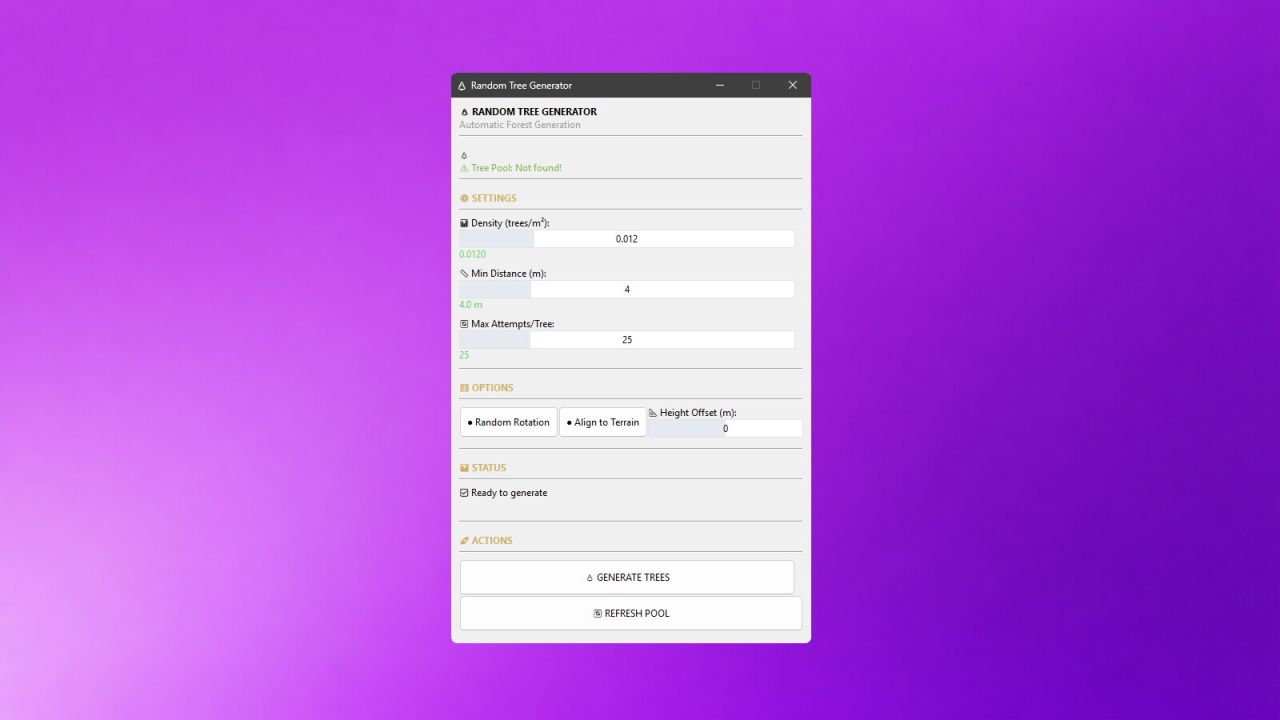
    With this practical script for the GIANTS Editor 10, a complete forest can be automatically created. The Random Tree Generator offers a simple way to randomly place trees from an existing pool within a defined area – considering minimum distances, terrain alignment, and random rotation. The tool allows any area (treeArea) to be defined as a forest area and automatically filled with trees from a treePool. Density, minimum distance, height alignment, and rotation can be individually adjusted. A special focus is on user-friendliness: - Easy configuration via a graphical user interface - Real-time progress display during generation - All trees are automatically grouped together (autoForest_X) - Clear status messages and error notifications For maximum control, the script offers numerous configuration options: Density (trees/m²): Determines how many trees are generated per square meter. Higher values create denser forests. Minimum Distance (m): Defines the minimum distance between two trees. Prevents overlaps and ensures natural distribution. Max Attempts per Tree: Specifies how many times the script tries to find a suitable spot for a tree. Higher values increase the success rate in dense forests. Random Rotation: Activates random rotation of each tree around its own axis. Provides more variety. Align to Terrain: Automatically adjusts the height of each tree to the terrain surface. Prevents floating or buried trees. Height Offset (m): Vertically shifts the trees. Positive values raise them, negative values lower them. The tool is aimed at both beginners and experienced modders and significantly speeds up the creation of forests and woodland areas on custom maps. ____________________________________________________ Installation: 1.) Navigate to the installation directory of the GIANTS Editor. Default: "C:\Users\User\AppData\Local\GIANTS Editor 64bit 10.0.11+" 2.) Copy the file "TreeGenerator.lua" into the scripts folder of the GIANTS Editor. "C:\Users\User\AppData\Local\GIANTS Editor 64bit 10.0.11+\scripts\" 3.) The script is then available in the GIANTS Editor via the menu bar under "Scripts". ____________________________________________________ Scene Preparation: Before you can use the script, your scene must have the following structure: Root ├── terrain ├── treeArea (TransformGroup with cubes or other objects) ├── point1 ├── point2 ├── point3 └── point4 ... └── treePool (TransformGroup with tree models) ├── treeOak01 ├── treeSpruce01 ├── treeBirch01 └── ... The treeArea defines the area in which trees are generated. Each child of this group represents a corner point of the polygon. At least three points are required. The treePool contains the template trees from which random selection is made. The more different trees, the more varied the forest will be. ____________________________________________________ Troubleshooting: "treeArea not found!" > The TransformGroup "treeArea" does not exist in the scene. "treePool not found!" > The TransformGroup "treePool" does not exist in the scene. "No trees in treePool!" > The treePool contains no tree models. "treeArea needs at least 3 points!" > The treeArea contains fewer than 3 points. "No trees generated!" > The area is too small or the density is too low.
  • GE10 Script - Ext. FieldToolkit (Prefab)
    1 124
    KingMods Logo
    Published by KingMods
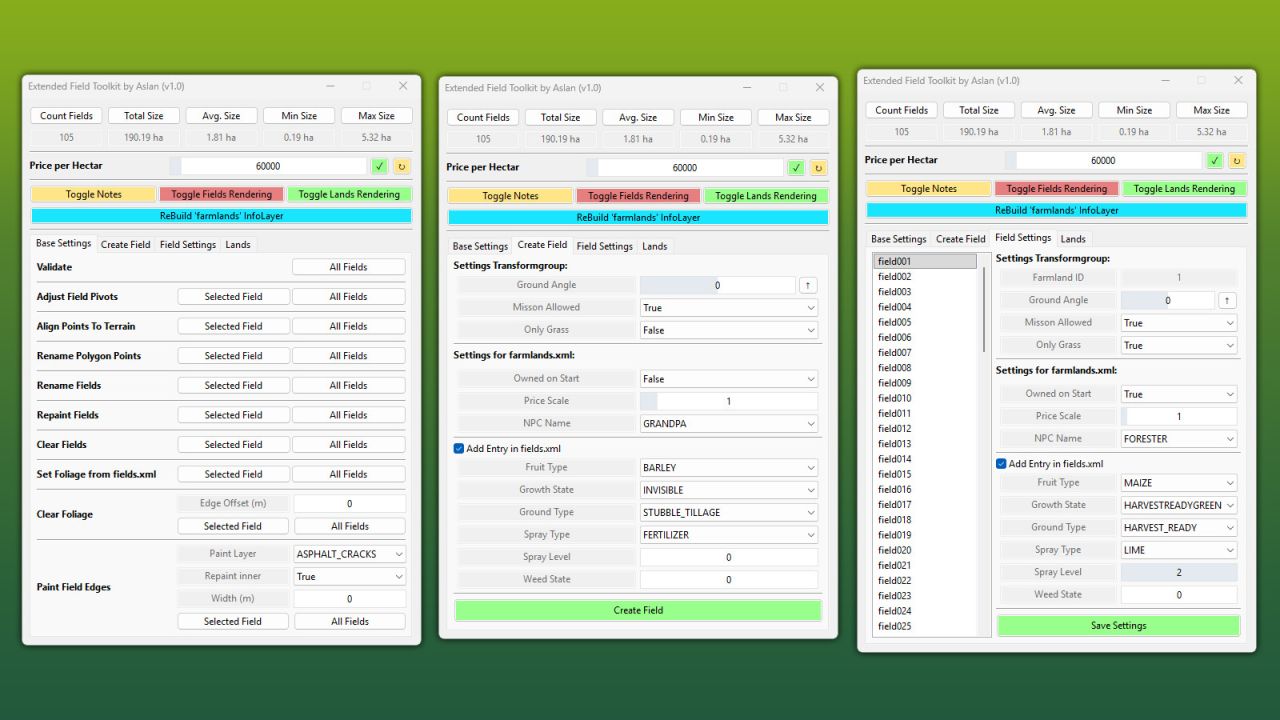
    The Extended FieldToolkit expands the standard GIANTS FieldToolkit with a wide range of new features and an improved debug view, making it significantly easier to create and manage fields. FEATURES: - Create or edit fields entirely through the UI - Create and manage land parcels (e.g. farms, forests, lakes, etc.) Debug View - Field names are rendered in the 3D viewport at each field's pivot position - Polygon points and names are shown for the selected field - Duplicate polygon vertices are highlighted Tools - Validate Fields: Checks all fields for misconfiguration, InfoLayer overlaps and missing attributes – with a clear [OK] / [WARNING] / [ERROR] output - Adjust Field Pivots: Moves each field's TransformGroup pivot to the area centroid of its polygon (correct even for concave fields) - Set Foliage from fields.xml: Paints the fruits defined in fields.xml directly onto the fields - Repaint Fields: Repaints all fields into the farmlands InfoLayer - Clear Fields: Removes all fields from the farmlands InfoLayer - Clear Foliage: Removes foliage from fields, with an optional configurable edge offset - Paint Field Edges: Paints a chosen terrain texture along field borders, optionally inwards as well - Rename Fields: Renames all fields with a consistent 3-digit numbering - Align Polygon Points: Aligns all polygon points to the terrain height - Field statistics (total area, field count) are displayed at the top of the window INFO: On first launch, the tool automatically adds the userAttribute “farmlandID” to all fields that don't already have it. This attribute is used to determine farmland ownership and replaces the name-based approach used by the standard FieldToolkit. ____________________________________________________ Installation: 1.) Navigate to the GIANTS Editor AppData path. Default: “C:\Users\[USER]\AppData\Local\GIANTS Editor 64bit 10.0.XX\scripts\” 2.) Copy the file “FieldToolkitExt.lua” from the prefab into the scripts folder. 3.) The script will then be available in the GIANTS Editor via the menu bar under “Scripts”.
  • GE10 Script - Traffic Manager (Prefab)
    1 410
    KingMods Logo
    Published by KingMods
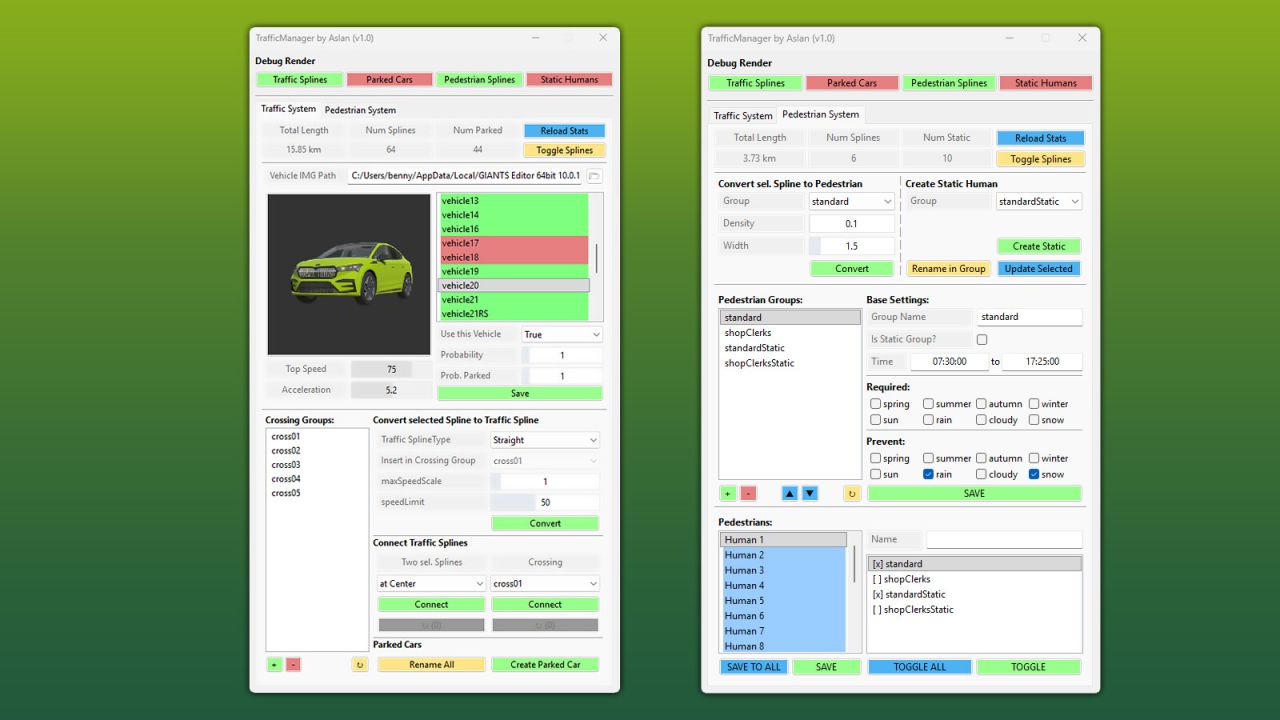
    Traffic Manager This comprehensive script for the GIANTS Editor 10 allows you to create, manage and debug complete traffic and pedestrian systems directly inside the editor. The Traffic Manager provides a wide range of tools for quickly setting up traffic splines, pedestrian paths and static characters, while also offering full control over all related XML data. The tool enables you to convert splines into traffic or pedestrian splines and automatically assign required attributes such as speed, density and group settings. Existing systems can be loaded, extended and fully edited, including group management, time schedules, conditions (e.g. seasons, weather) and sound configurations. A strong focus is placed on pedestrian management: Groups can be created, modified and removed. Pedestrians can be assigned to these groups individually or globally. In addition, static humans can be placed directly in the editor, organized within groups and visually debugged. The tool also supports moving entities between groups as well as automatic renaming and scene cleanup. For maximum clarity, the script includes extensive debug visualization directly in the viewport: Traffic splines, pedestrian paths, static humans, directions and bounding boxes are rendered in real time. This makes it easy to identify issues and understand system behavior without leaving the editor. This tool is designed for both beginners and advanced modders and significantly speeds up the creation of complex, lively maps. ____________________________________________________ Installation: 1. Navigate to the installation directory of the GIANTS Editor (e.g. "C:\Program Files\GIANTS Software\GIANTS_Editor_10.X.X\"). 2. Copy the file "TrafficManager.lua" and the folder "imgTrafficVehicles" from the prefab into the GIANTS Editor script folder. 3. Restart the GIANTS Editor. The script will then be available via the menu bar under "Scripts".

  • GE10 Script - WaterToolkit (Prefab)
    1 426
    KingMods Logo
    Published by KingMods
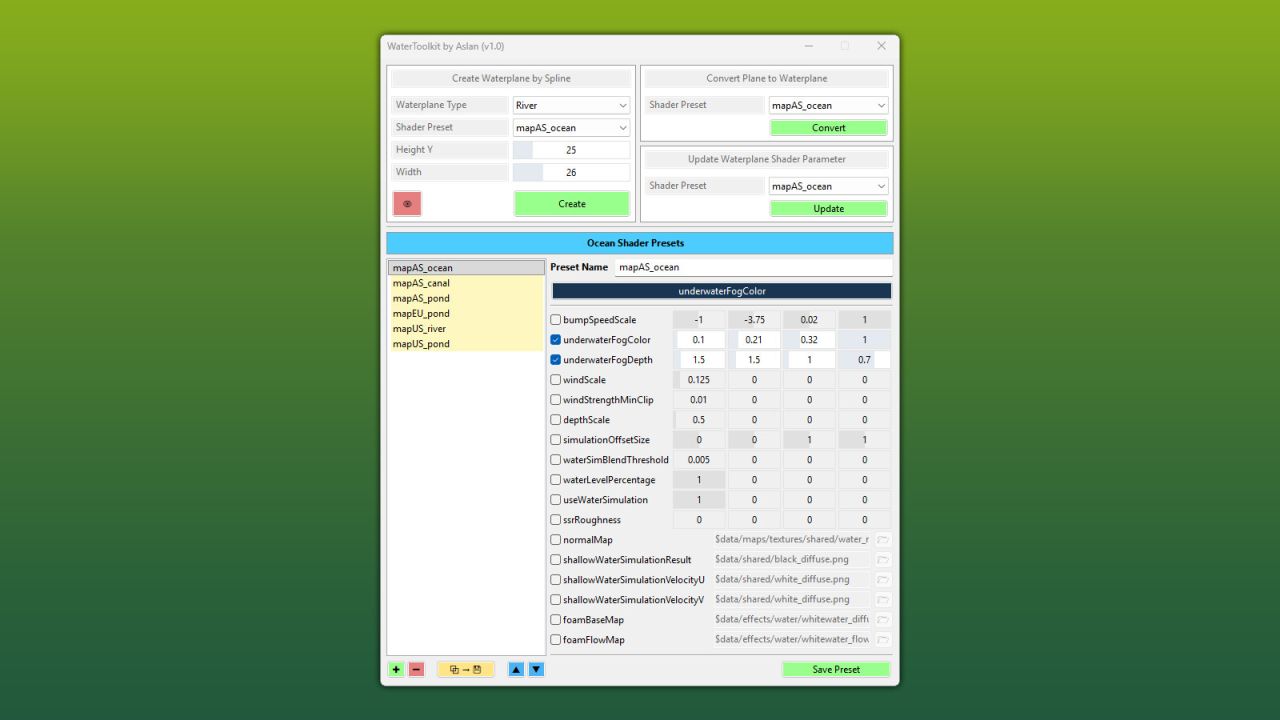
    WaterToolkit is a GIANTS Editor script for Farming Simulator 25 that significantly streamlines the workflow for creating and customizing water surfaces. Features: • Generate water planes from splines – both closed lake surfaces and rivers with adjustable width • Convert existing planes into complete water planes (including WaterSimulation & WaterInMirror) • Manage shader parameters via presets and apply them to any number of nodes at once • Built-in presets based on FS25 maps • Create, save, reorder and delete custom presets • Live preview with mesh triangulation directly in the viewport ____________________________________________________ Note – Height Slider Range: If the slider range for the water height is not sufficient, the limits can be adjusted directly in the script: WaterToolkit.HEIGHT_MIN_SLIDER (default: lower bound) WaterToolkit.HEIGHT_MAX_SLIDER (default: upper bound) ____________________________________________________ Installation: 1.) Navigate to the GIANTS Editor AppData path. Default: “C:\Users\[USER]\AppData\Local\GIANTS Editor 64bit 10.0.XX\scripts\” 2.) Copy the file “WaterToolkit.lua” from the prefab into the Script folder of the GIANTS Editor. 3.) The script will then be available in the GIANTS Editor via the menu bar under “Scripts.”
  • GE10 Script - FieldToolkit (Prefab)
    1 415
    Field Toolkit is a tool for Giants Editor 10, based on the original editor field tool, but with improvements and optimizations. This version includes improvements in field debug rendering. Unlike the original tool, which renders all fields at the same time, this version renders only the selected field, reducing the impact on performance when working on large maps. Installation: 1.) Navigate to your GIANTS Editor installation directory. Default path: “C:\Program Files\GIANTS Software\GIANTS_Editor_10.X.X\” 2.) Copy the file “SplineToolkit.lua” and the folder “fenceImages” from the prefab into the GIANTS Editor script folder. 3.) The script will then be available in the GIANTS Editor via the menu bar under “Scripts”.
  • GE10 Script - Animal NavMesh Gen. (Prefab)
    1 902
    KingMods Logo
    Published by KingMods
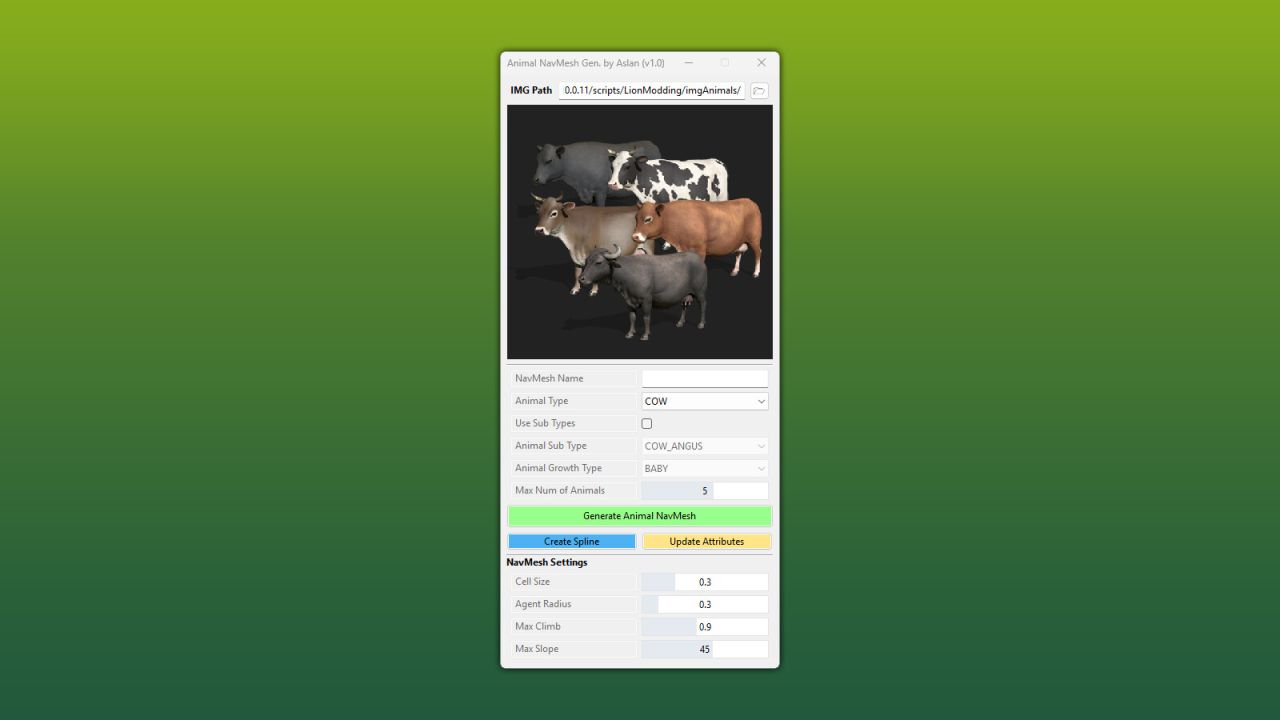
    Animal NavMesh Generator This script for the GIANTS Editor allows you to quickly and easily create navigation meshes for decorative pastures. The tool generates a NavMesh directly from a selected spline and automatically assigns the required attributes for the selected animal type. All standard animal types from Farming Simulator are supported, including subtypes and growth stages. In addition, the script displays helpful debug information directly in the editor viewport. ____________________________________________________ Installation: 1. Navigate to the installation directory of the GIANTS Editor (e.g. "C:\Program Files\GIANTS Software\GIANTS_Editor_10.X.X\"). 2. Copy the file "AnimalNavMeshGenerator.lua" and the folder "imgAnimals" from the prefab into the GIANTS Editor script folder. 3. Restart the GIANTS Editor. The script will then be available via the menu bar under "Scripts".
  • GE10 Script - Powerline Generator (Prefab)
    1 444
    KingMods Logo
    Published by KingMods
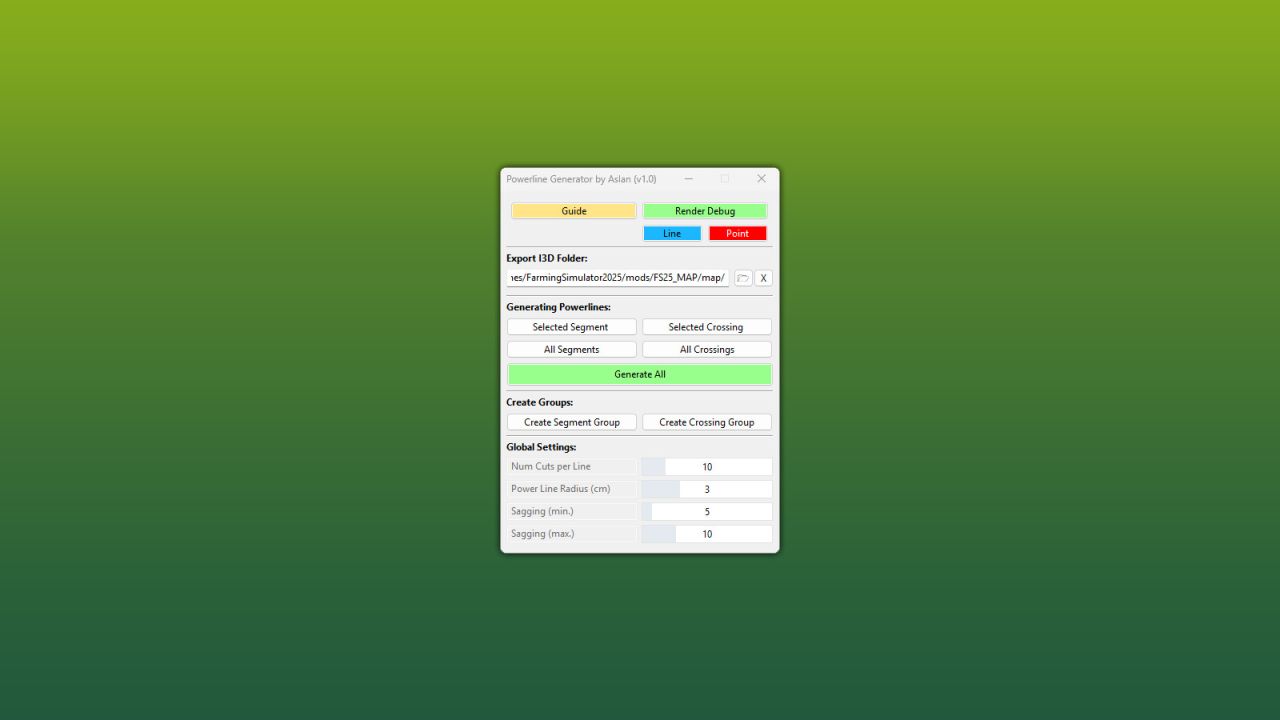
    With this powerful GIANTS Editor script, a complete powerline network can be created in a short amount of time – from simple line segments to complex branches and crossings. Power poles are connected via defined connection points in the Scenegraph, and the cables are automatically generated as meshes and properly organized within the project structure. The hierarchy remains clean and easy to manage at all times. The generated powerlines use the official LS25 standard (including wind reaction), ensuring realistic in-game movement and seamless integration into existing maps. A detailed, multilingual guide (DE / EN / PL / FR) is included directly within the tool. Installation: 1.) Navigate to your GIANTS Editor installation directory. Default path: "C:\Program Files\GIANTS Software\GIANTS_Editor_10.X.X\" 2.) Copy the file "SplineToolkit.lua" and the folder "fenceImages" from the prefab into the GIANTS Editor script folder. 3.) The script will then be available in the GIANTS Editor via the menu bar under “Scripts”.
  • GE10 Script - SplineToolkit (Prefab)
    3 606
    KingMods Logo
    Published by KingMods
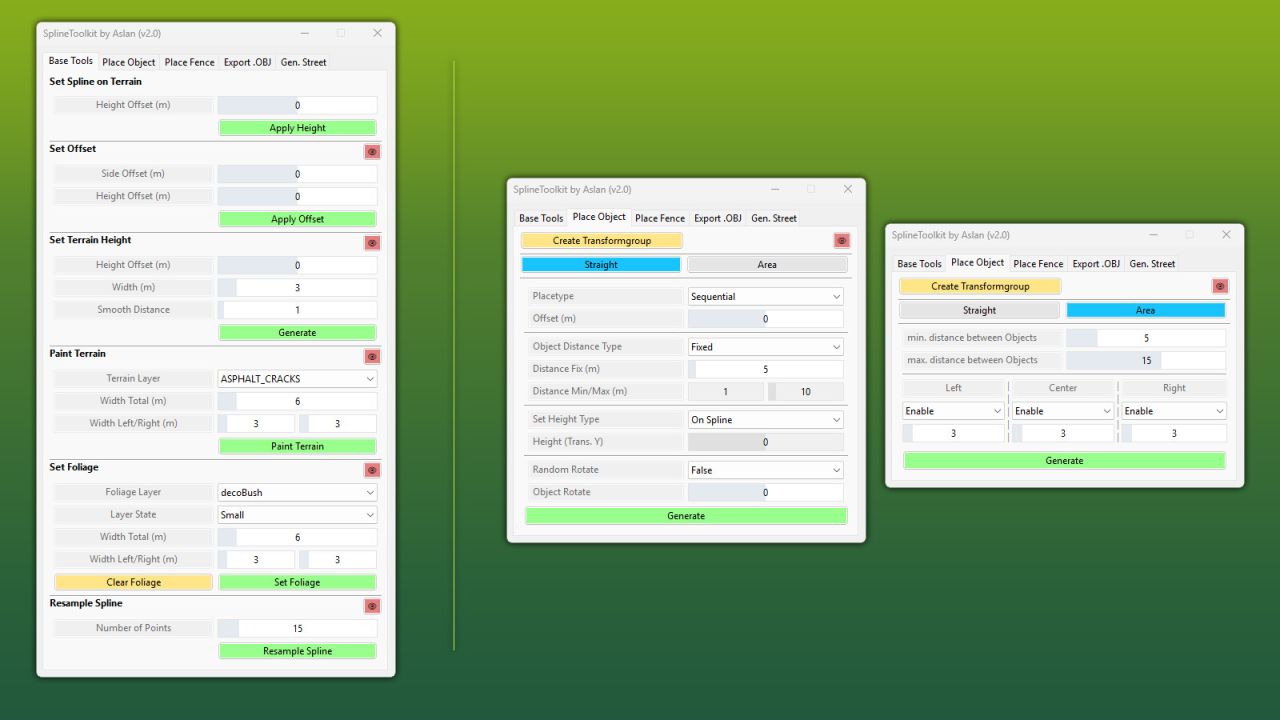
    The SplineToolkit is a comprehensive GIANTS Editor script that brings a wide range of spline-related tools together in a single package. Nearly all functions include a real-time preview directly in the editor viewport. --- Base Tools --- The Base Tools form the foundation of the toolkit and provide essential tools for spline and terrain editing. Spline points can be projected directly onto the terrain, shifted vertically or horizontally, and the terrain height can be precisely matched to the spline. In addition, terrain textures and foliage can be painted along a spline, and Resample Spline allows the number of control points to be adjusted as needed. --- Place Objects --- Place Objects allows objects to be placed flexibly along a spline or distributed across a defined area. Placement can be done sequentially in the order of the SourceObjects or randomly from the available selection. A wide range of parameters such as distance, height type, rotation and offset provide precise control over the result. --- Place Fence --- Place Fence enables fast and structured creation of fence systems along a spline, with a clear list of base game fences including preview images. Fences can be imported directly, and animated gates can be positioned along the spline using a slider. The animation data is automatically written to the configuration file so that gates work correctly in-game via a trigger. A built-in XML viewer and the "Validate Fences" function allow full verification of all entries for errors and inconsistencies. --- Export as .OBJ --- The export tool allows splines to be exported as .OBJ files using two different methods, optimizing the workflow between GIANTS Editor and Blender. Additional parameters control the density and format of the exported points. --- Generate Street --- The road generator allows complete road meshes to be created directly inside the GIANTS Editor, including correct UVs and a selection of base game road textures. A real-time preview displays the result immediately in the viewport before the mesh is finalized. Matching traffic splines can optionally be generated automatically.